
This document provides guidelines on setting up and testing Label Printers for Lab Symplified.
Screenshots and guide is written for a Windows 11 device. Same instructions apply for Windows 10 or other Windows OS with slight variations.
Prerequisites
- A label printer (direct or transfer thermal printer), preferably from Zebra. This printer needs to support ZPL printing.
- The printer is configured in the computer following guidelines from the vendor.
Example of existing printer setting:
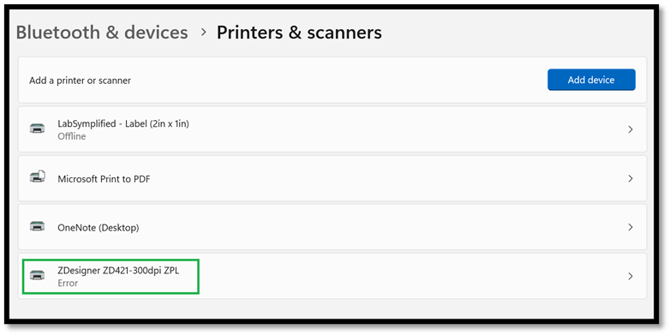
Follow Below Steps To Add The Printer:
-
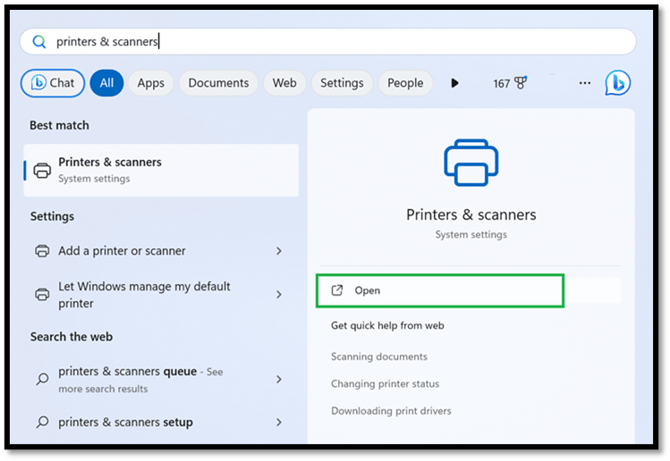
Search “printers & scanners” in Windows and open it.
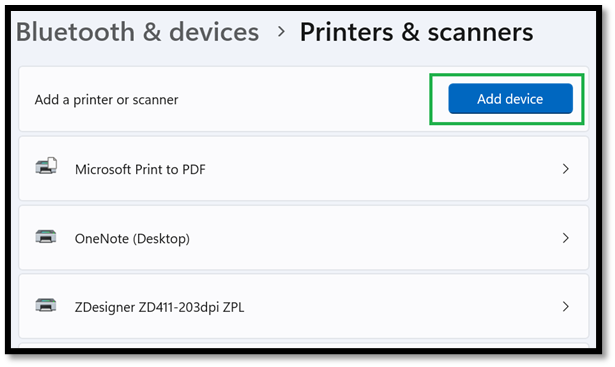
- Click on “Add a printer or scanner” from the settings page in order to add the printer setting.
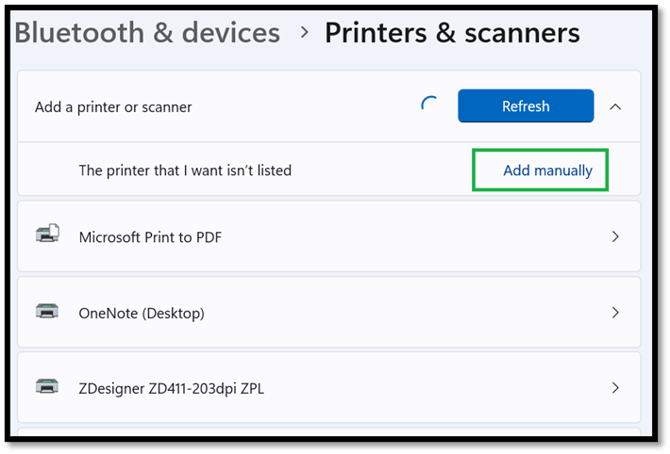
- The settings page searches for new printers. After searching, it gives a message saying “The printer that I want isn’t listed’. Click on the Add manually link.
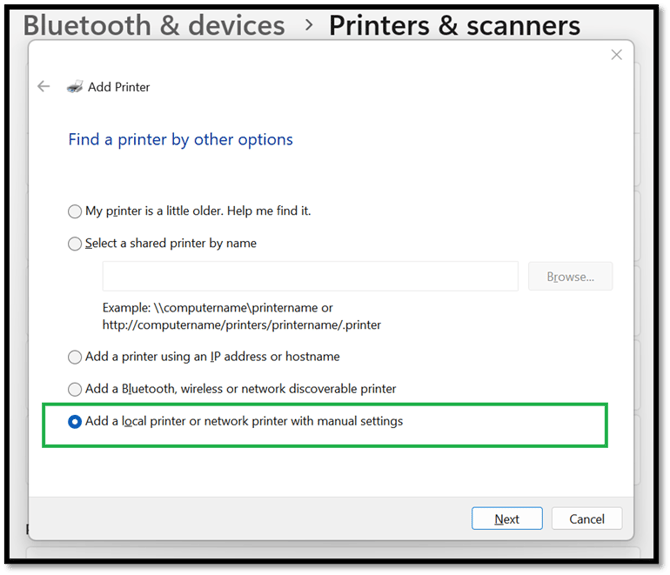
- The settings page shows a dialog for adding a new printer setting. It further shows multiple options for configuring the printer. Choose “Add a local printer or network printer with manual settings” option and click Next.
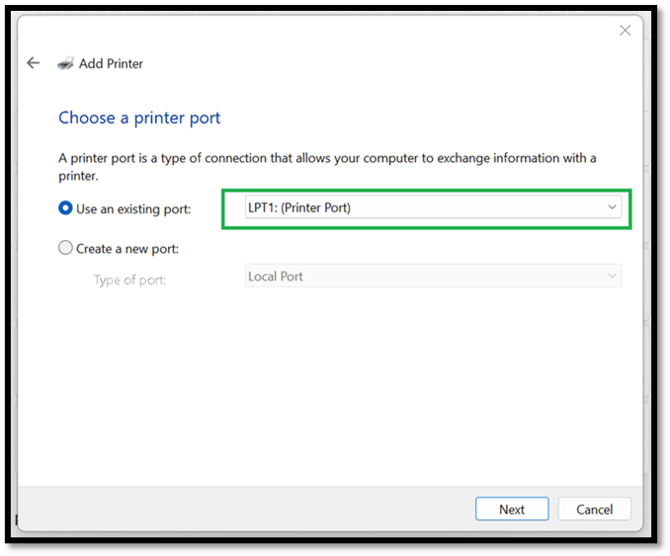
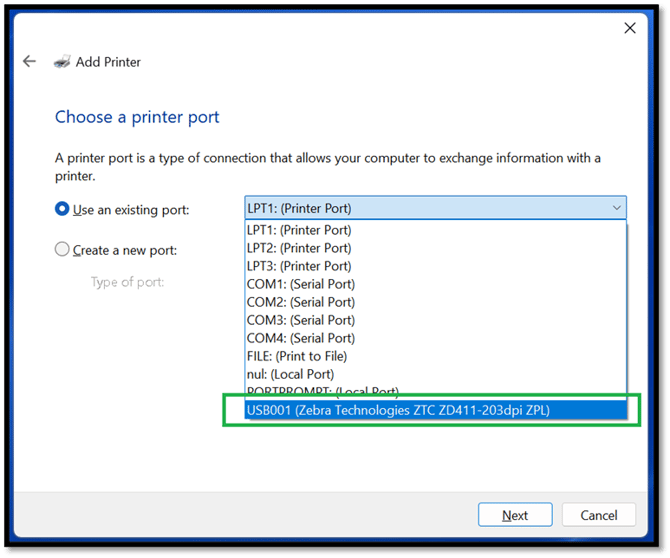
- The wizard displays a window for selecting the port of the printer. From the list, choose Use an existing port: option. Click on the dropdown and choose the port being used by the label printer (label printer port and printer name should be displayed in the dropdown e.g. USB001 (Zebra Technologies ZTC ZD411-203dpi ZPL). After you choose the port, click the Next button.
Note: If the appropriate printer port with the printer name is not showing in the dropdown, printer’s driver may not be installed in the PC/device. Download the printer model’s driver from official Zebra website and install or Contact your IT for support.
6. In this step, you will install the printer driver. Choose printer manufacturer Generic and printer name Generic / Text Only. Then click the Next button.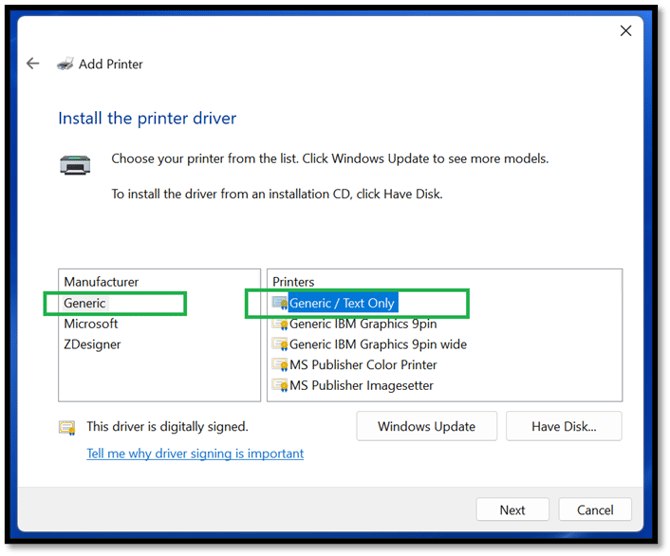
7. In this step, you will give a name to the printer. Recommended naming convention is LabSymplified - Label (<Label_Size>). For example, name the printer as LabSymplified - Label (2in x 1in) if you are dedicating the printer for label size of 2in in width and 1in in height. Once you give a name to the printer, click the Next button.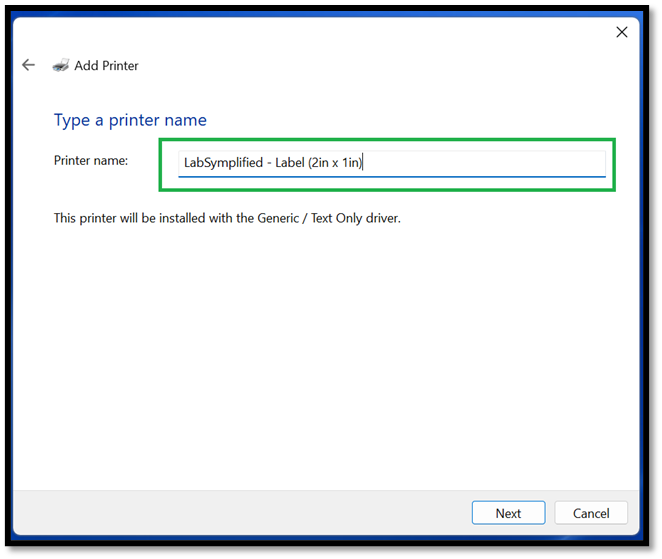
8. In this step, you will configure whether you want to share your printer in the network. After configuring the sharing option, click on Next button. 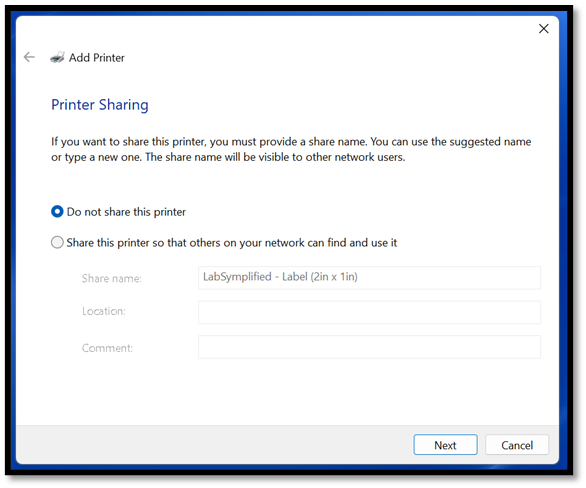
9. Finish the setup by clicking the Finish button. Note that printing a test page doesn’t work for this configuration, as this printer is configured to print text only, or ZPL instructions for label printers.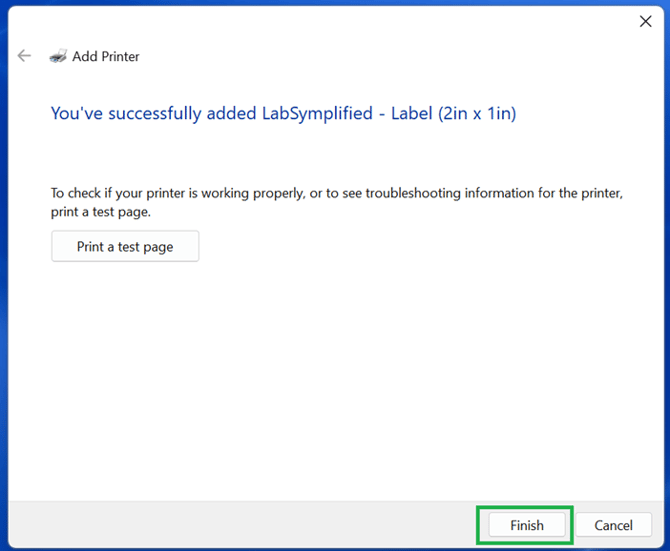
Instruction For Testing Printer
Testing using notepad
Open notepad, paste following text, and print using system dialog. Choose the printer for LabSymplified for printing.
^XA
^MMT
^PW207
^LL0105
^LS0
^FT17,27^A0N,17,16^FH^FDSample item^FS
^FT90,47^A0N,11,12^FH^FDLOT^FS
^FO8,8^GB191,90,1^FS
^BY28,28^FT17,76^BXN,2,200,0,0,1,~
^FH^FDSAMPLEBARCODE^FS
^FT90,75^A0N,11,12^FH^FDEXP^FS
^FT115,46^A0N,14,14^FH^FDSAMPLE^FS
^FT115,74^A0N,14,14^FH^FD12/12/2030^FS
^PQ1,0,1,Y^XZ
It should print a sample label similar to the image below. The printed label will be of size 1 inch in width and 0.5 inch in height if your printer is 203 dpi. (The printed size will be different if you are using a printer with a different resolution).
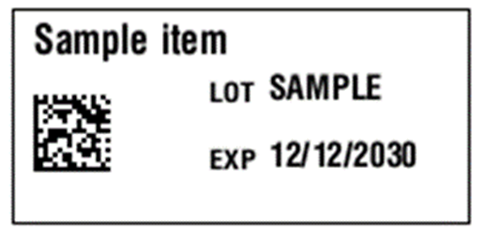
Note: If “Page too small to print one line. Try printing using smaller font.” error is encountered in notepad during testing, go to File > Page Setup and set all margins to 0 and try again.
Frequently Asked Questions
- Why are new labels not printing correctly in successive print attempts from the application?
This usually happens when Headers and Footers is turned on in the browser print settings. Open the print window, go to More Settings, and make sure Headers and Footers is turned off. Also confirm the remaining print settings are at their defaults: Pages = All, Layout = Portrait, Paper size = Letter, Pages per sheet = 1, Margins = Default, Scale = Default.